How to Approve Fetcher for Outlook Sync in Microsoft 365
 Updated
by
Support Team
Updated
by
Support Team
If Outlook sync is being blocked when connecting Fetcher, it is typically because your Microsoft 365 organization requires administrator approval before third-party applications can access Microsoft Graph permissions.
This guide explains how a Microsoft administrator can approve Fetcher within your Microsoft Entra ID (Azure AD) environment and enable Outlook synchronization.
Who Can Complete This Process?
The following administrator roles can perform these steps:
- Microsoft Entra ID (Azure AD) Global Administrator
- Cloud Application Administrator
What Does This Approval Allow?
Granting admin consent allows Fetcher to:
- Read and send email on behalf of the signed-in user
- Access basic user profile information
- Maintain access required for ongoing synchronization
These permissions are required for Outlook integration to function properly.
Step 1: Trigger the Application in Your Tenant (Recommended)
Before approving the application, please go ahead and attempt to connect Outlook within Fetcher.
- Sign in to Fetcher.
- Attempt to connect Outlook.
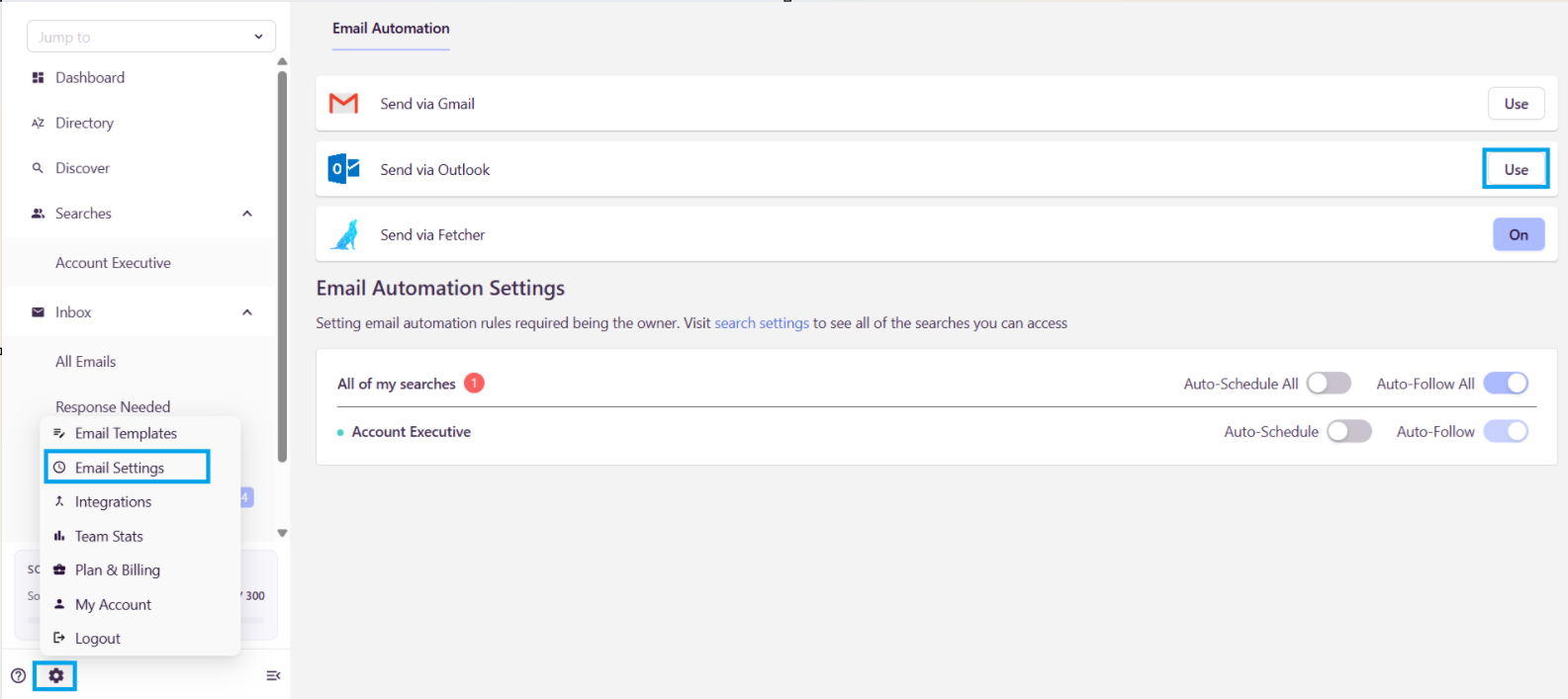
- Stop when the "Need admin approval" message appears.
This action ensures that the Fetcher application appears in your organization's Enterprise Applications list.
Step 2: Open the Microsoft Entra Admin Center
- Sign in to the Microsoft Entra Admin Center.
- Navigate to:
Enterprise Applications → All Applications - Search for Fetcher.
Note: The application name may vary slightly depending on your region or environment. - Select and Open the Fetcher application.
Step 3: Grant Admin Consent
- Within the Fetcher application, navigate to:
Security → Permissions
or
Permissions - Select Grant admin consent for [Your Organization].
- Review the requested permissions.
- Click Accept.
Verification
Once completed, confirm that the application shows:
Admin consented: Yes
Step 4: Verify User Access Settings
- Within the Fetcher application, navigate to:
Properties - Review the setting:
User assignment required?
Recommended Setting
Set this value to: No
This allows authorized users within your organization to connect Outlook without requiring additional assignments.
Alternative Configuration
If you prefer to keep User assignment required? set to Yes:
- Navigate to: Users and Groups
- Select Add User/Group.
- Assign the appropriate users or groups who should be allowed to use Fetcher.
Step 5: Reconnect Outlook in Fetcher
After admin consent has been granted:
- Return to Fetcher.
- Have the user sign in again.
- Connect Outlook.
The Outlook synchronization should now complete successfully without displaying the admin approval message.
Troubleshooting
If users continue to receive approval prompts after completing the steps above:
- Verify that admin consent shows as Yes.
- Confirm that the user has been assigned access if User assignment required? is enabled.
- Ensure the user signs out and signs back into Fetcher before attempting to reconnect Outlook.
- Confirm that your organization's security policies do not block Microsoft Graph permissions for approved applications.