UKG Integration
 Updated
by
Support Team
Updated
by
Support Team
You can integrate your UKG account with Fetcher by going to Settings in the left toolbar and clicking Integrations.
Then select UKG.
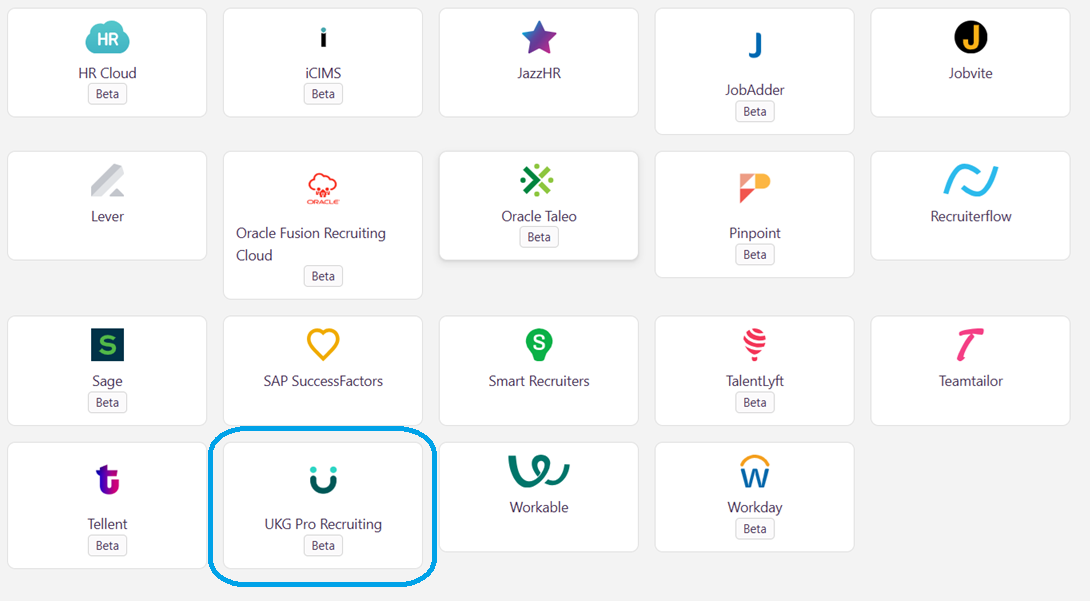
Fetcher fully supports UKG Integration. This integration supports deduping, as well as sending Candidates to the ATS
You will then directed to a page to confirm if you are the "Administrator" of your UKG Integration.
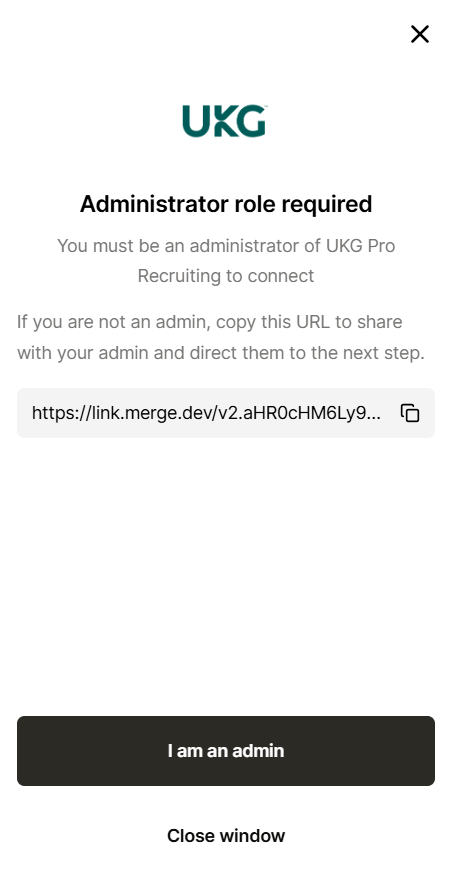
Once you are done confirming "I am an admin". You will be routed to confirm which type of account you will be connecting.

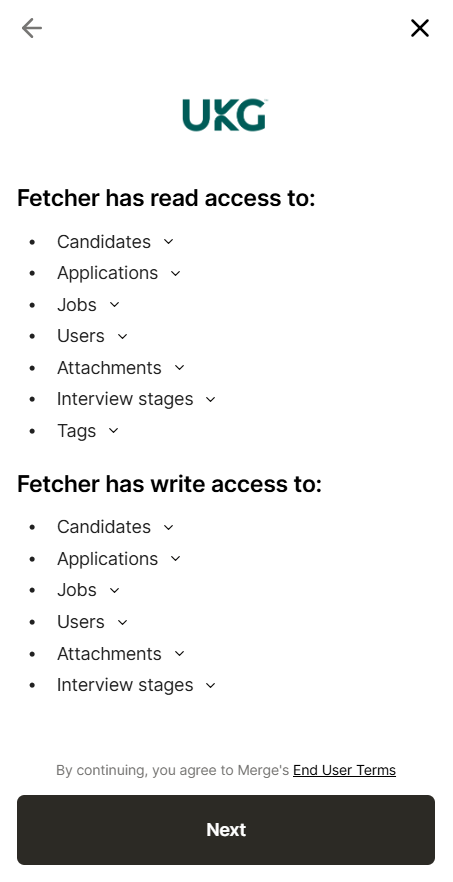
After clicking/confirming, you will be routed to a page where you will see and review the data permissions. Once done reviewing, you can proceed by clicking "Next"
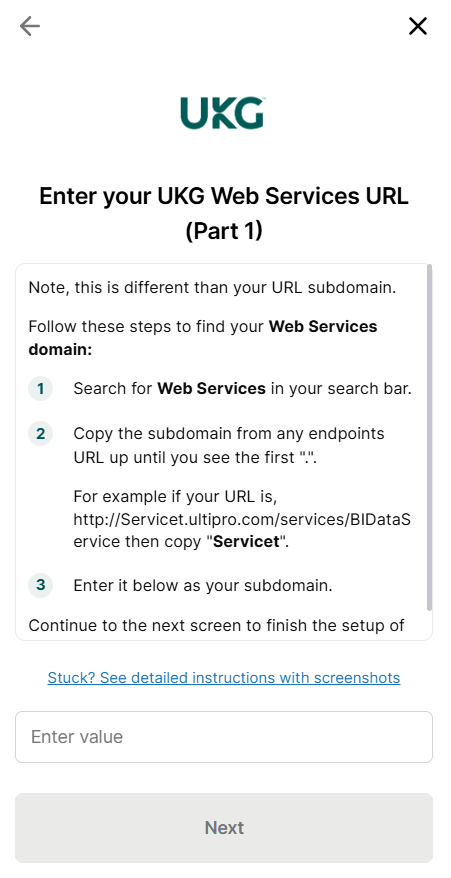
You will now be routed to a page where you will enter the value for your UKG account. Easy further instructions will be provided so that you will know the correct value you will enter. Once entered, you can now click "Next". ( Sample domain have provided in the screenshot - fetcher )
Once done, you will now be notified that the connection was a "Success!".
When you hit "Next", you will be routed to a page where you will see what data Fetcher has access to.
You can click "Next", and from there you will be routed to a page that will notify you that "You're connected!".
You may now click "Finish". And that's it, you are now done with the syncing process!
Uploading Leads Manually
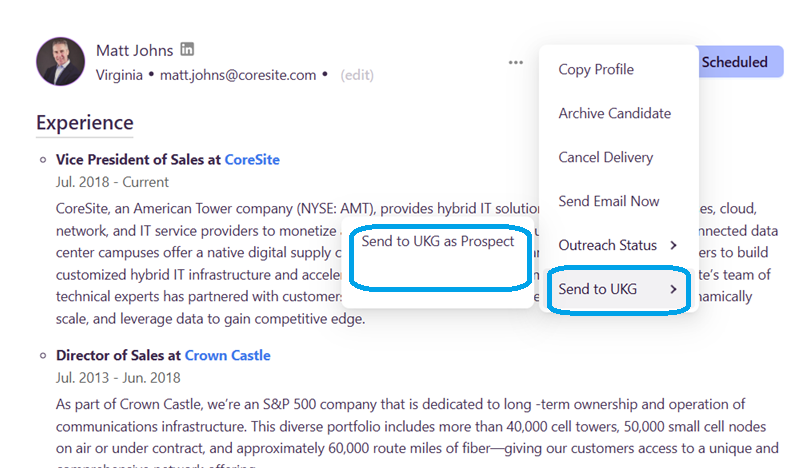
To manually upload, simply click the '...' button at the right-hand corner of the candidate's card, selecting the "Send to UKG as a Prospect" option.
>Send to UKG as Prospect, the lead will be sent to UKG as a General Application.
Uploading Leads Automatically
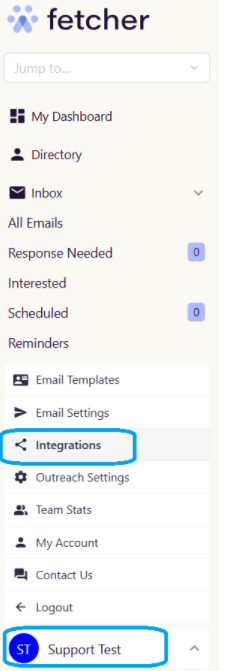
You can find your Automation Settings by going to your Profile Tab ( lower left-hand of the screen) > Integration.
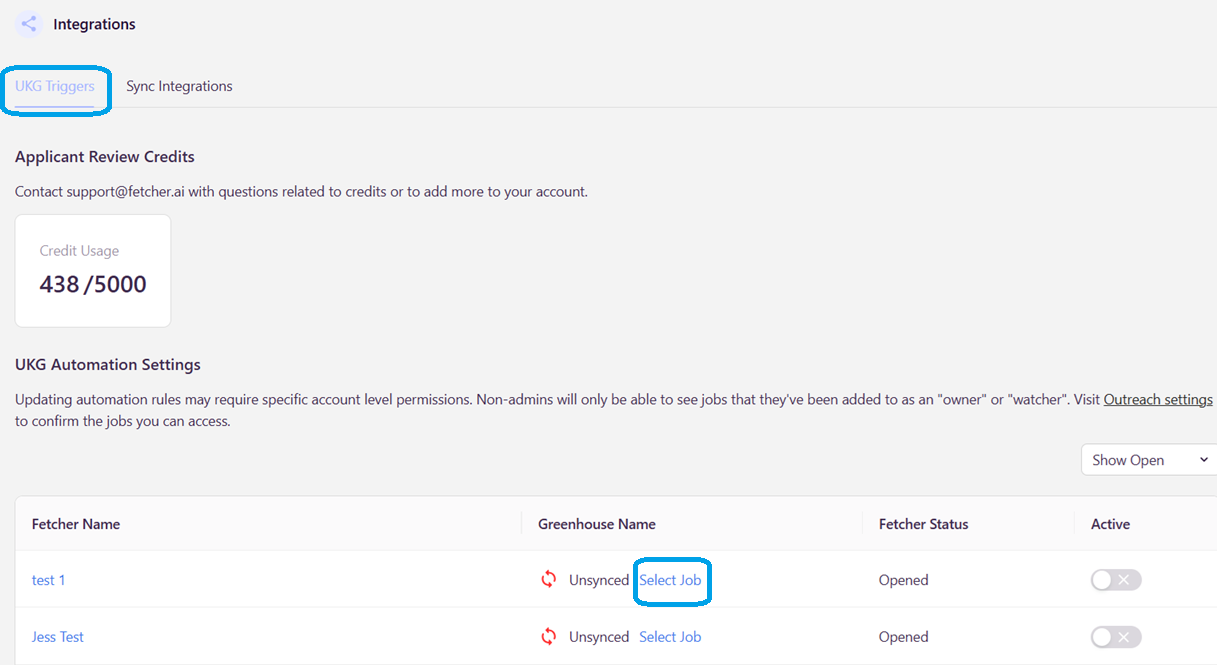
Here you will see all the positions you have access to, however, you will only be able to set the automation for those positions that you own. You will also land on the "UKG Triggers" page, which will enable you to automate the uploading of leads/candidates to your UKG.
From here, you will be able to choose what search you want to automate. You just need to click "Select Job".
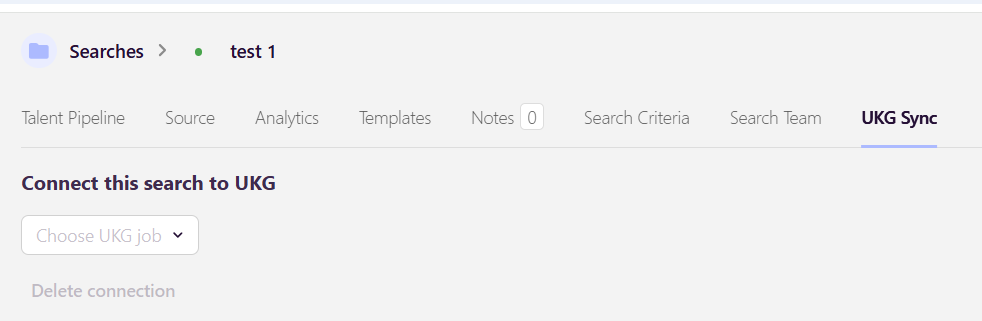
Once the "Select Job" is clicked, you will be routed to the "UKG Sync" page of your chosen search.

.Connecting your Fetcher search to a particular UKG job
.AI Inbound Resume Review
.Set applicant limit
.Workflow Automation > Upload to UKG
Step 1:
The system does allow you to select the job you would like the candidate associated with. However, even when a specific job is selected, the candidate is currently sent to UKG as a Prospect. This means the candidate will appear in UKG as a General Application rather than being attached directly to the chosen job.
We understand how important this functionality is and want to reassure you that improvements are underway. We’ll be sure to share updates as soon as this enhancement becomes available.
Step 2: Tell us when
Use the drop-down menu beside "Automatically upload Fetcher profiles to UKG" to choose at which point you would like leads to be uploaded to the General Applicant stage. You can choose to upload at any of 5 points in the process. Those are:
- All New Candidates - When you receive a batch all will be automatically uploaded.
- On Like - When you 'like' a lead while giving feedback.
- On Contact - When an email is sent to the lead.
- On Reply - When a lead replies to an outreach.
- On "Interested" Reply - When a lead replies positively.
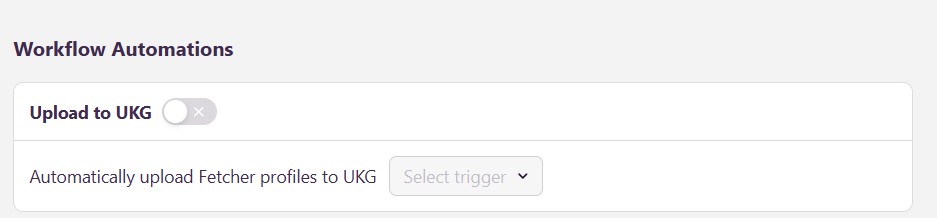
You should turn on this automation ( toggle on ) and select in the drop-down options "When" to automatically upload the candidates to UKG.
Revoking UKG Access
If you wish to disconnect your UKG account with Fetcher, simply click your Profile Tab > Integrations > Sync Integrations > Disconnect.